Room Lounge is where your team logs daily attendance, activities, and child updates. To keep data secure, only managers can activate Room Lounge on the service’s tablets. Once it’s set up, staff can log in to their rooms using their own PINs.
 Log In as a Manager
Go to acorncloud.app/login.
Enter your manager email and password to access your dashboard.
Once logged in, you’ll be on your Manager Portal.
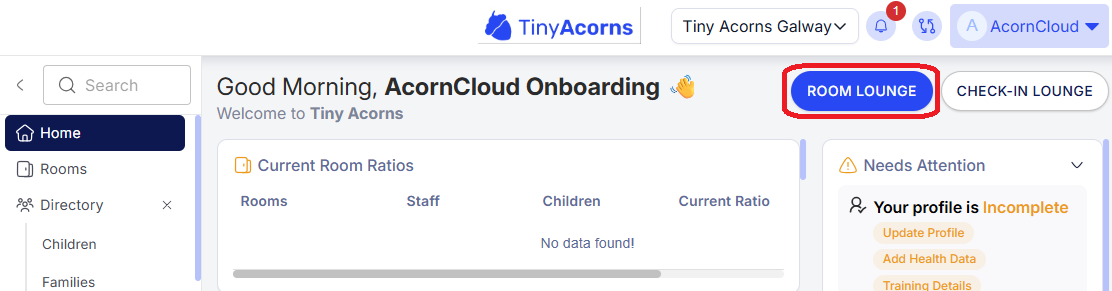
 The AcornCloud dashboard showing the Room Lounge button in the top-right corner.

 Only managers can activate Room Lounge — this ensures service and child data can’t be accessed outside the service.
 Open Room Lounge
Tap the Room Lounge button at the top-right of the screen.
A pop-up will appear asking for your 4-digit manager PIN.
Enter the PIN and tap Activate Room Lounge.

 Use Sleep Mode to Save Time
At the end of the day, staff can tap Sleep Mode instead of logging out completely.
This keeps Room Lounge secure but avoids needing to reactivate it the next morning.
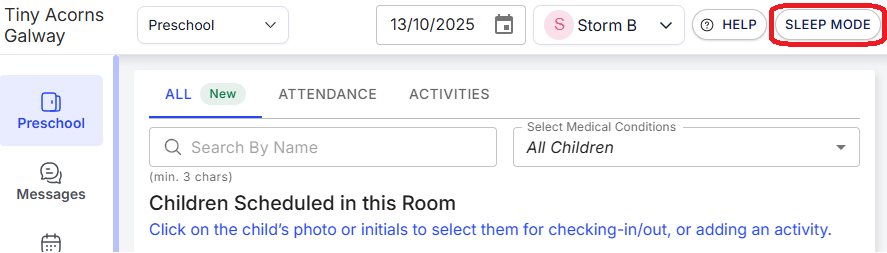
Sleep Mode button on the Room Lounge screen.
 Tip: Remind staff members to use Sleep Mode daily — it keeps Room Lounge secure overnight while reducing repeated manager logins. Best Practice Tips
Make sure staff log in with their own PINs (not shared ones).
If Room Lounge is accidentally closed, a manager will need to reactivate it.
Avoid leaving Room Lounge open overnight on unattended tablets.
